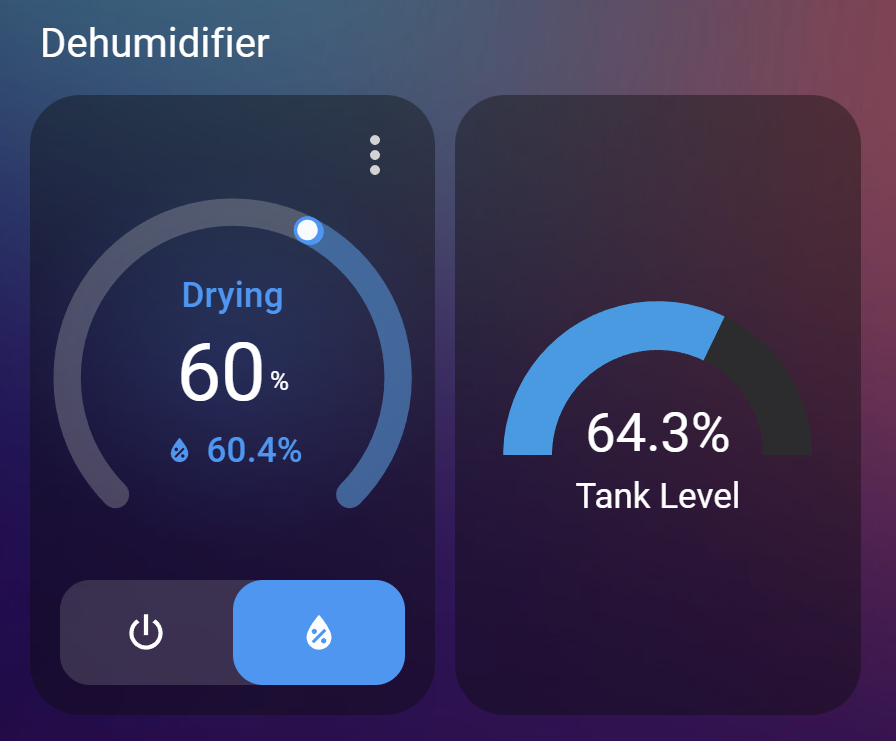
Want to turn your boring regular dehumidifier smart with 0 hardware tweaking and change from £30 of off the shelf smart products? Then read on!
Why bother?
We live in an old solid wall house in the UK, which means like many we rely on a dehumidifier in the damper months of the year. It’s a great bit of kit, of course keeping the damp at bay, but also makes heating more effective and allows us to dry fragile clothing indoors.
Straight away though, there were clear smart quality-of-life improvements that were glaring us in the face. It had a built in humidity target, but with the sensor on the machine, it was very optimistic and over 15% off from actual humidity levels. The tank would also fill at the worst times, beeping endlessly until we sorted. So I set out to achieve:
- Precise humidity targets, using an external sensor.
- Notifications when the tank is nearly full – with the choice to either get notified straight away, or when our toddler isn’t around.
- Warnings, and eventually automatic switch off if the bathroom window has been left open.
- And finally, automatic on and off around our toddler’s bedtime.
I’ll show below how we’ve done this, but first I should mention that this only works with models that return to their previous state when switched off and on at the wall. If yours requires an extra button press to start, this won’t work.
Hardware
We’re going to want the following:
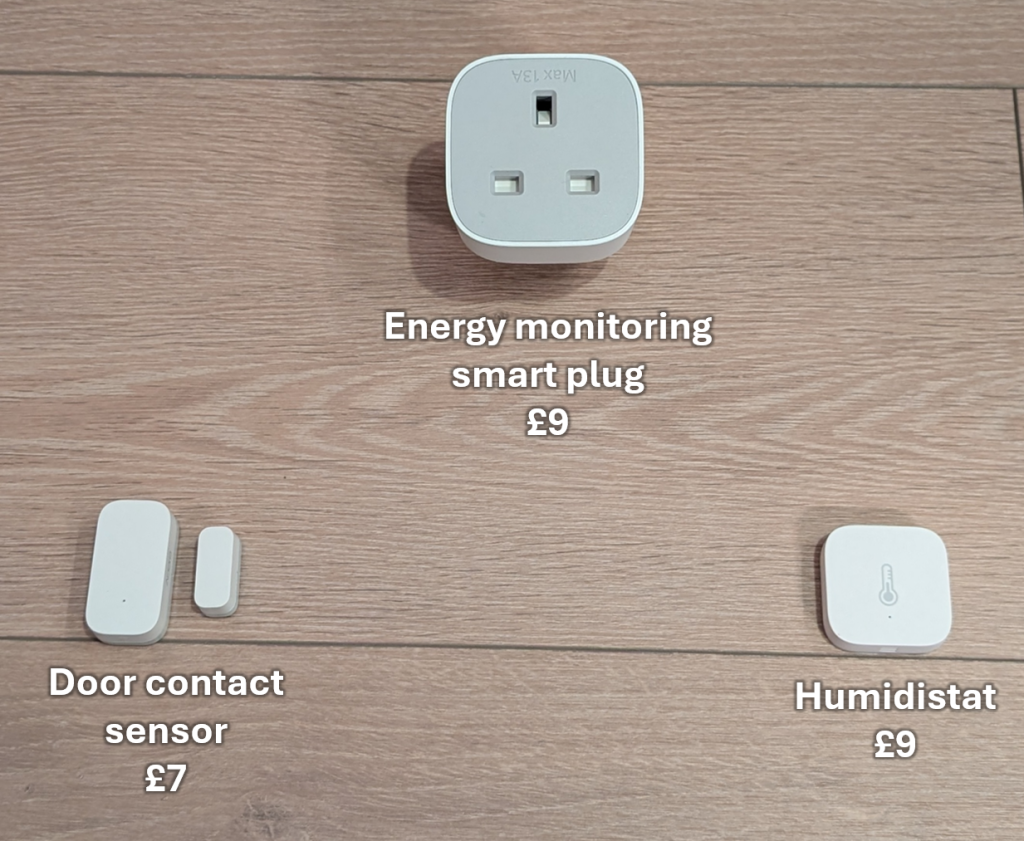
- An energy monitoring smart plug.
- A smart plug is probably unsurprising – it obviously controls switching on and off. However the energy monitoring aspect is vital since this will measure the usage and estimate the current water tank level.
- Recommended hardware: IKEA INSPELNING £9, Local Bytes Plug £12.75
- A basic humidistat.
- This external sensor will provide a more accurate room humidity level, and not just what the value is immediately next to the dehumidifier.
- Recommended hardware: Virtually any temperature sensor will also show humidity, such as the Aqara Temperature Sensor
- A door contact sensor (optional: two of these).
- Placed between the water tank and the dehumidifier itself, this will send a signal that the tank has been removed, and imply that it has been emptied.
- Additionally, another placed on a nearby window, to warn and turn off if left open.
- Recommended hardware: Aqara Door £7, IKEA PARASOLL £9
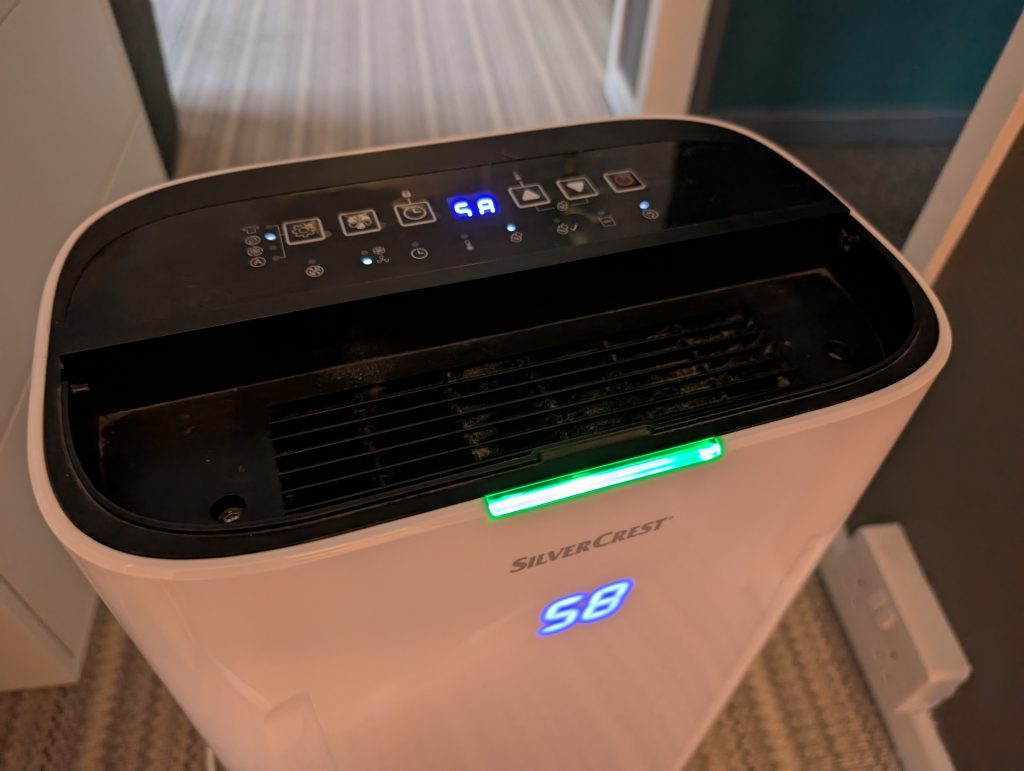
And of course… a dehumidifier. As mentioned above, ensure it returns to its previous state after being switched off and back on at the wall. We have a basic compressor model from Lidl that works great, and didn’t break the bank. But I expect this will work for virtually any model.
Control from Home Assistant
As I already had temperature sensors in each room, I opted to use the values from the nearest one to the dehumidifier – in my case, the bedroom. Once I had my smart plug connected I set up a Generic Hydrostat Helper with the following settings:

This creates a fake controllable dehumidifier from a phone or PC, with a tolerance of 2% – meaning when set to 60% for example it’ll wait till it’s 62% before turning on, and 58% before turning off, to avoid frequent on/off cycling. And as an additional precaution, you can even set a minimum cycle duration to further protect the compressor.
I set our dehumidifier in manual mode, and set the target humidity on the machine to as low as it would allow – with ours, that’s 30%. An arbitrarily low value that means all control will be done via Home Assistant.
And to stop this from turning on in the middle of the night, we added it to our existing bedtime automation for our toddler. Meaning when we press a hidden button in his room which controls bedtime lights, it now switches the new dehumidifier entity to off, and on in the morning.
Tank Monitoring – Calculation
This gets a little trickier, but not too much. With the smart plug on and by default logging data, it should have added an energy entity, recording kWh. Our sits at a consistent 240W with the compressor on, meaning a steady increase in consumption.
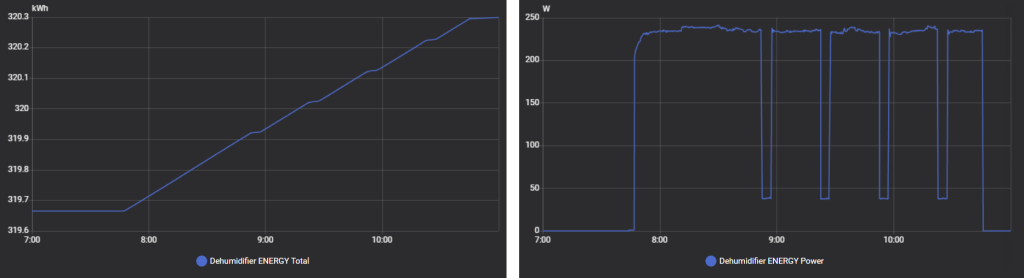
With this set up, the next few times I emptied the tank I poured it into a measuring jug, and jotted down the current kWh value. With this, given I know the tank size (6.5 litres on ours), I could work out what the total 0 to 100% energy consumption might be. I made a simple spreadsheet to calculate this – download a copy here if you like.
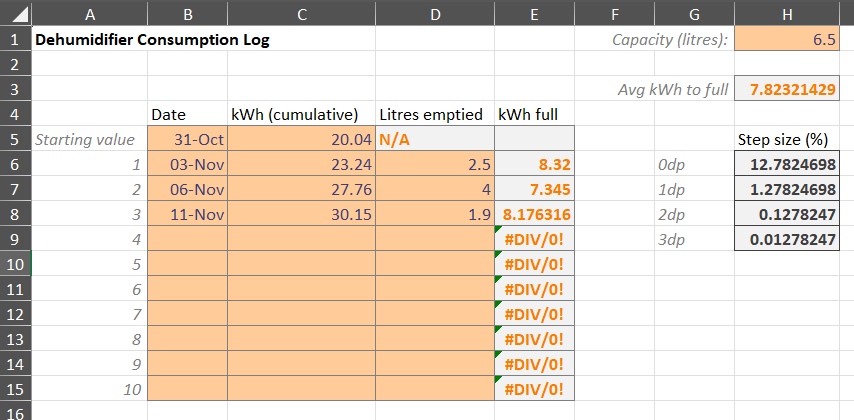
After emptying 3 times I noticed there wasn’t a big variance in consumption per litre – perhaps 10%. So I settled with an average of 7.82kWh per full tank. This means I could comfortably set an alert for 60% tank level without worrying about extra precision. To do this, I created an input number to hold the value – but most importantly I set a step size using my consumption value I’d calculated.
The step size is the amount I want the tank level to increase each time an increase in power is detected. As my smart plug has 3 decimal places, this means for 7.82kWh from empty to full, I can calculate that each step should be 100/7.82/1000, giving me a figure of 0.01278. If you don’t quite follow don’t worry, the spreadsheet (linked again here) gives you this too. I then chose to round this up to 0.015 for 2 reasons – it gives the total value a nicer round number, plus it gives a bit of extra headroom to stop it actually getting full.

Don’t fret about getting the step size perfect. You can always tweak the step size after you’ve finished setting up, in case you notice your tank level increasing slower or faster than reality.
Tank Monitoring – Automation
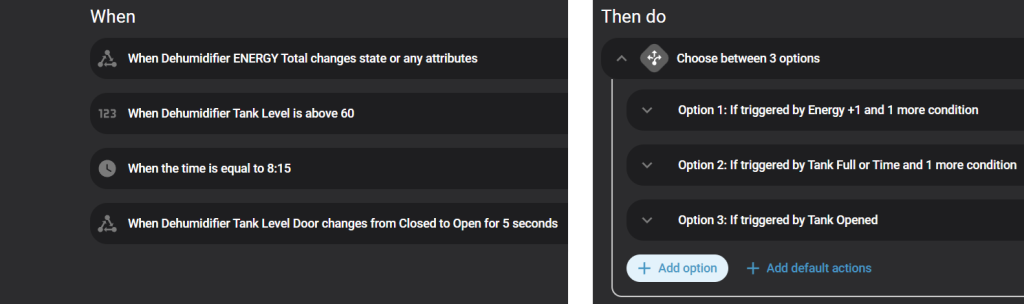
Then it was finally time to create an automation to handle the logic. I wanted a single automation that could:
- Increase the tank level value automatically.
- Notify our phones when tank is full.
- Reset the tank level to 0 when it is emptied.
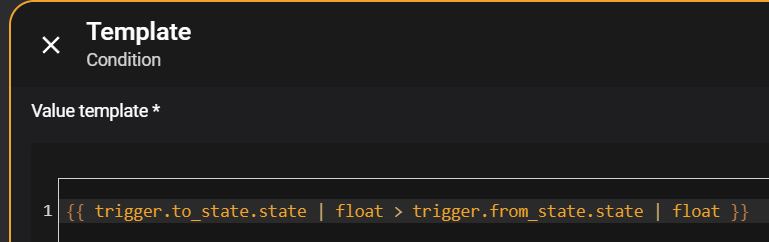
For the first one, with the step size correctly set, it’s as simple as calling an input number increment service. But then as an extra safeguard I added a template condition to ensure the new energy value had to be larger than the last – this helped avoid any erroneous increases due to other changes with the smart plug.
For the notifications, this was pretty straightforward – our phones run the Home Assistant Companion app, which exposes notification services. I went with two triggers for notifications – for the first one, immediately when the tank level is above a set value, which I opted for 60%. However, as we might not always be around to empty it, I went with a second trigger based around a time we would be much more likely to. So I went with 8:15 – immediately after nursery drop-off! And is also of course set to only notify if the tank level is above 60%.
And finally, to reset our counter back to zero, this is where the door contact sensor comes in. Every dehumidifier will be different but try to find somewhere flat, unobtrusive, and away from the water flow. For us it was at the top of the tank on the side that sits against the wall.
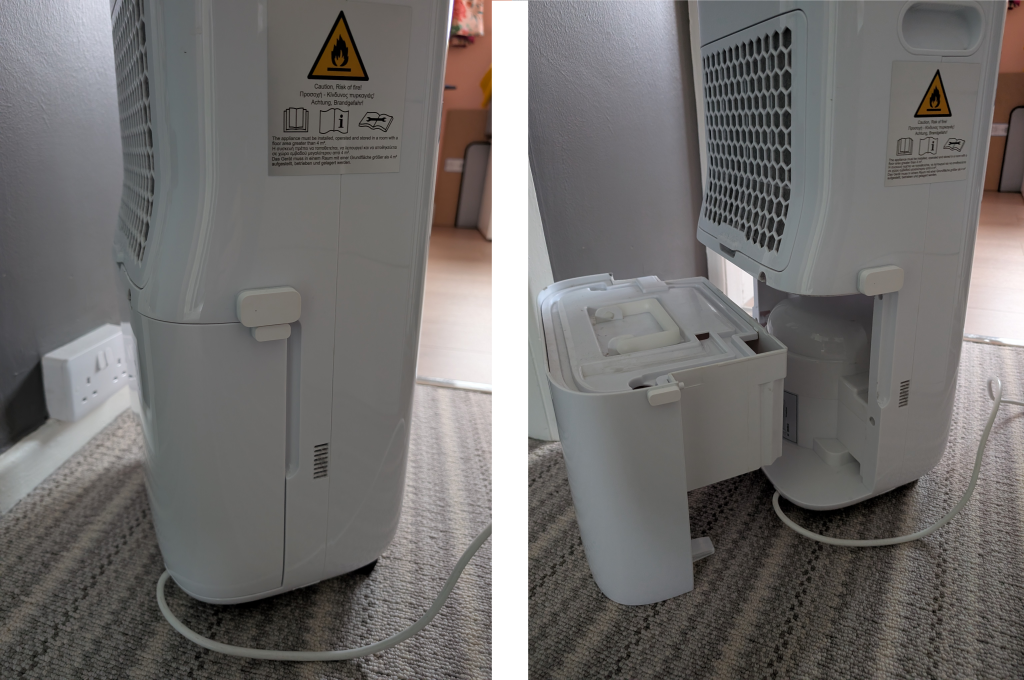
Then for the automation, to avoid false positives I set the contact sensor trigger to only work when it has been opened for at least 5 seconds. This sets the tank level back to 0%, but also importantly sends a clear_notification message to clear any alerts – this is a good ethos to counter any notifications you send, as it avoids notification spam/fatigue, and signals that the job is done for anyone else that has received it.
Grab the full automation yaml here if you like.
Open Window Detection
This automation was perhaps the easiest. If the bathroom window is left open for an hour, the following notification is sent:

Followed 30 minutes later, unsurprisingly, with this notification and the dehumidifier switching off:
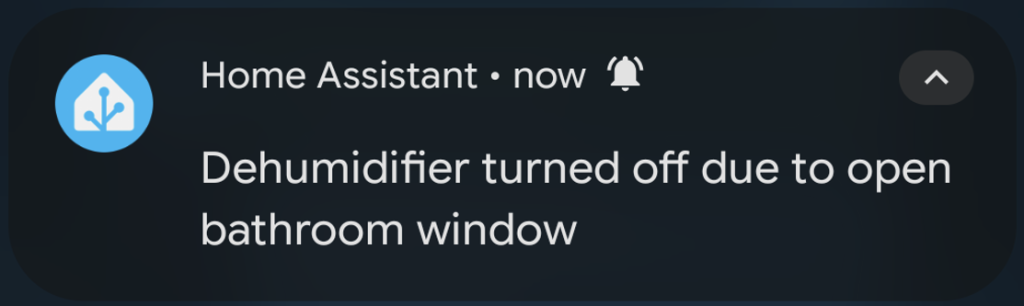
Within the next 10 minutes though, if the window is closed, the dehumidifier will automatically turn back on, to avoid having to manually turn back on.
Again, full automation yaml here for this one.
Summary
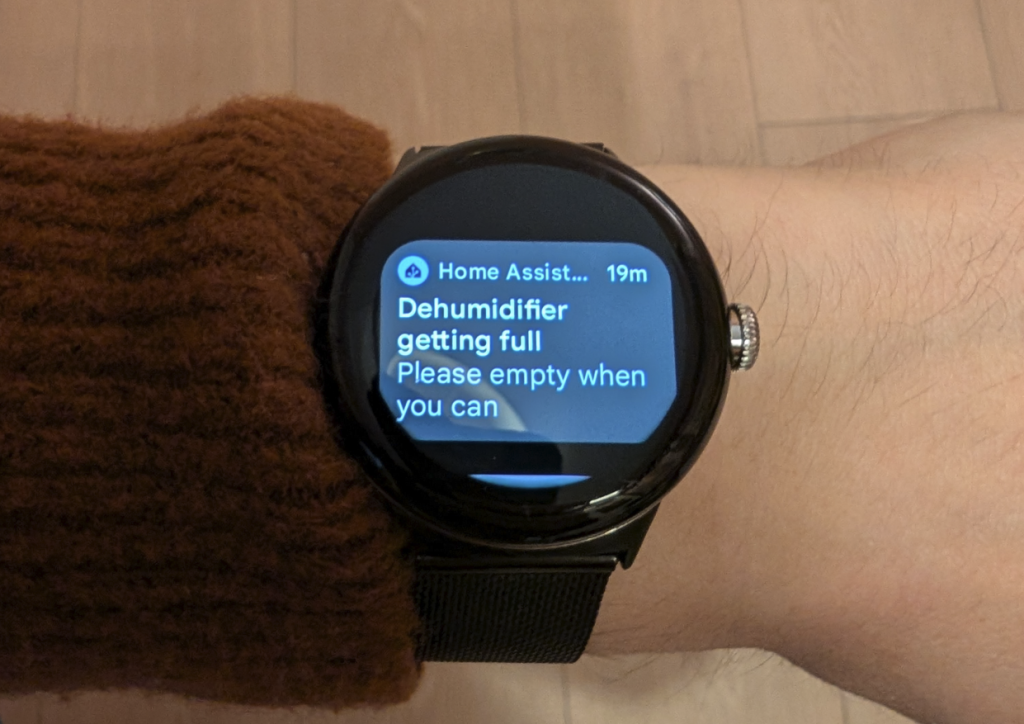
While this may seem like a lot of effort, as always it pays for itself in the long run. We’ve had this automation running virtually untouched for the last 3 years and it’s been unobtrusive, we’ve never had the tank fully fill, and it means we’ve likely saved on both running costs and condensation reduction due to it only running when it needs to. Plus, how can having this come through to your watch make you feel like you aren’t living in the future…
Leave a Reply